Capsuleers.app logo CAPSULEERS.APP

Guide · Navigation and intel

Live Map — complete guide

The EVE Online regional map in real time: kills arriving as they happen, camped gates, sovereignty timers, Ansiblex bridges, Thera connections, where your pilots and your fleet are. This guide explains every feature and how to use it.

Last updated:

Account
Optional — only needed to follow your pilots
Data
CCP ESI, eve-kill live feed, EVE-Scout
Freshness
Kills in real time, pilots every 15 s
Devices
Desktop, tablet, phone in portrait and landscape
The Live Map on Delve: systems coloured by security, last-hour kill badges and the Region panel on the right
Delve live: nodes by security and sovereignty, last-hour kill badges, the Region panel.

What is the Live Map?

The Live Map on Capsuleers.App draws an EVE Online region the way the client's 2D map does: systems, stargates, constellations and the borders with neighbouring regions. On top of it, it shows what is happening right now — ships destroyed in the last hour, gates held by a camp, sovereignty campaigns, every alliance's Ansiblex bridges, Thera and Turnur wormholes — and, if you sign in with EVE, where your characters are.

It is built to help you decide before you jump: which route is quiet, where people are fighting, who is in Local and what your alliance channels are reporting. Everything public works without an account.

Haulers and roamers

See the camps on the gates and the recent kills before entering a system.

Fleet commanders

Follow the fleet on the map, receive the intel your members paste and see your alliance intel channels as marks on the systems.

Hunters

Find where the region is alive right now, with the kill feed in front of you.

Getting started

  1. Pick a regionSearch it by name or by system, or start from the regions active right now.
  2. Turn on the feedThe Live button opens the stream of kills in the region.
  3. Open a systemOne click shows its card: security, sovereignty, kills, gates.
  4. Follow a pilotSigned in with EVE, the map changes region together with your character.

Features

Each card: what it does, how to use it, what it needs.
01

How do I pick a region on the Live Map?

On the Capsuleers.App Live Map you pick a region from the start page, by searching its name or any system in it, or by choosing a tab. No account is needed. The start page searches regions and systems, remembers the regions you opened last and groups all of them in tabs: active now, empire, nullsec, NPC and special, wormhole. Every nullsec region shows the emblem of the alliance holding the most systems.

How to use it

  1. Open the «Active now» tab for the regions with the most ships destroyed in the last hour.
  2. Or browse by type of space: Empire, Nullsec, NPC & special, Wormhole.
  3. Type a region or a system in the search field: a system opens its region already centred on it.
No account needed
The Live Map start page: switching tabs, then searching «Tama»
AnimatedTabs by type of space, then a system search: Tama opens The Citadel centred on it.
02

How do I read the Live Map and its data stream?

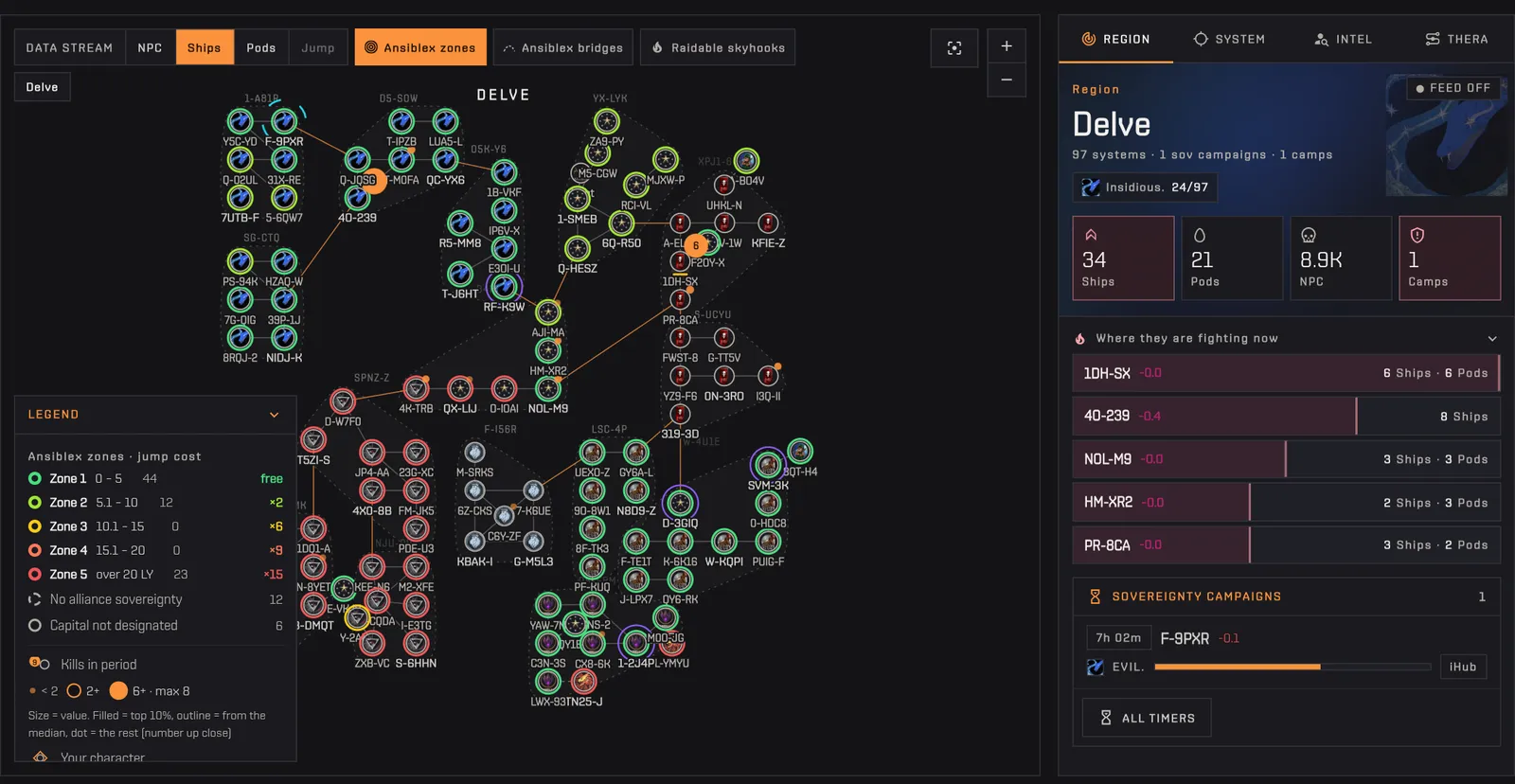
Each system on the Capsuleers Live Map is a node, and the Data stream selector chooses what the orange badge counts for the last hour: NPC kills, ships, pods or jump range. Each system is a node coloured by security, with the holding alliance's logo inside. The orange badge counts what died there in the last hour, and the «Data stream» selector decides what it counts: NPC kills (ratting), ships, pods, or — when you follow a pilot — the jump range from them. The names do not change with the mode: only the badges do.

How to use it

  1. Use the selector at the top left of the map: NPC, Ships, Pods or Jump.
  2. Open «Legend» to read every mark on the map: camps, sov campaigns, staging systems, intel, bridges, zones.
  3. Drag to pan, scroll or +/- to zoom, «Recenter map» to frame the whole region again.
No account needed

Tip Amber links change constellation, thin dashed grey links leave the region by stargate: the neighbour's region is written under its name, and a double click opens it.

The data stream switching from NPC kills to pods and ships on Delve
AnimatedThe same region read three ways: NPC kills, pods, ships.
03

Can I read a whole region at once on the Live Map?

Yes: the Capsuleers Live Map keeps every system name visible even in large regions such as Fountain or Delve, drawing crowded labels smaller and dimmed instead of hiding them. Far from the map, in a big region, system names are never hidden: where two labels would overlap, the crowded one is drawn smaller and dimmed instead of disappearing, and every name has a halo so it stays readable over links and badges. Zoom in and the labels return to full size. Names sit below their node, like in the game client, with the security line right under the name as soon as there is room; nodes, logos and labels also grow when you zoom in and there is space.

How to use it

  1. Open a large region such as Fountain or Delve: all the names are there from the first frame.
  2. Zoom with the wheel or +/-: crowded names grow back to full size.
  3. «Recenter map» frames the whole region again.
No account needed
The Fountain region at far zoom: every system keeps its name, crowded ones smaller and dimmed
Fountain at far zoom: no name hidden, the crowded ones smaller and dimmed.
04

How do I tell where the activity really is?

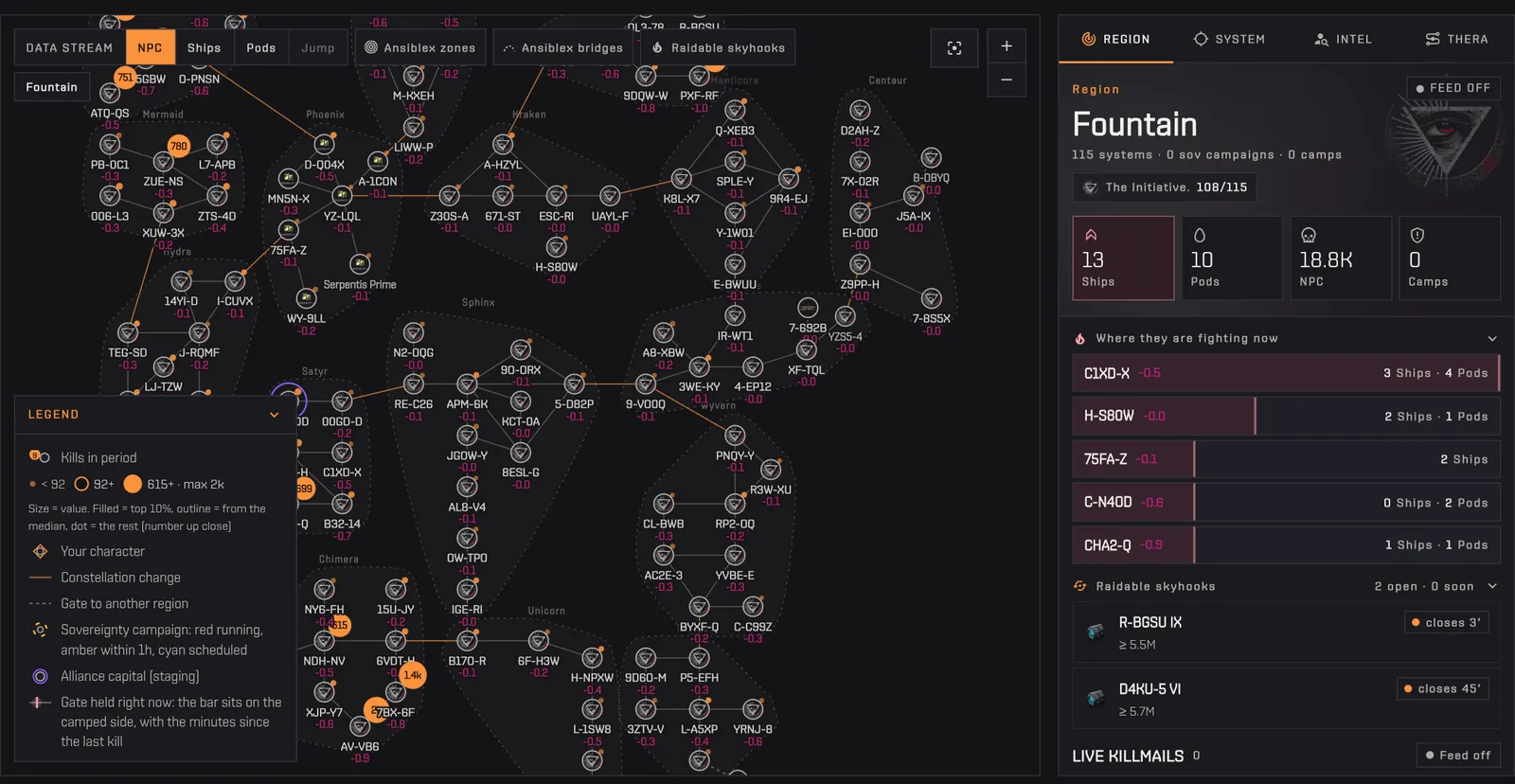
On the Capsuleers Live Map the orange badge size is proportional to the count it shows, so the busiest systems stand out at once. The orange badge is proportional to what it counts, so the eye goes where the activity is. The size grows with the square root of the count. The top tier is a solid disc, the middle tier an outline, the rest a small dot, and the numbers appear as you zoom in. The legend carries the scale for the current stream: the thresholds of the three tiers and the maximum in the region.

How to use it

  1. Pick NPC, Ships or Pods in the «Data stream» selector.
  2. Zoom in: the numbers appear on the badges, first on the big ones.
  3. Read the «Kills in period» scale in the «Legend» to know what the three tiers stand for.
No account needed
Fountain with the NPC data stream: orange badges of different sizes and the size scale in the legend
Fountain on NPC: solid discs for the busiest systems, dots for the rest, the scale in the legend.
05

How do I see Ansiblex bridges on the map?

The Ansiblex bridges chip on the Capsuleers Live Map draws every known Ansiblex bridge as a dashed line coloured by owner alliance, on by default. The «Ansiblex bridges» chip, at the top left of the map, draws the real Ansiblex bridges, read server-side from a community source. Each bridge is a dashed line in the colour of its owner — the alliance holding the sovereignty of the system, the only one that can use it — with a slow dash flow and a ring on each end. The layer is on by default, and the chip remembers your choice.

How to use it

  1. Open a nullsec region, such as Impass: the bridges are already drawn.
  2. Use the «Ansiblex bridges» chip to hide or show them.
  3. Open «Legend» to read the colour, the dash and the ring.
No account needed

Tip If the community source does not answer, the legend tells you with «Bridge source not responding», or «Bridges: last known copy» when it shows the last copy it had.

Impass with the Ansiblex bridges layer on: dashed lines in the owners' colours and rings on the endpoints
Impass with bridges on: a dashed line per bridge, a ring on each end.
06

How do I see which alliance owns which bridges?

With bridges on, the legend of the Capsuleers Live Map lists the Ansiblex owners; clicking one alliance isolates its bridges. With bridges on, the legend gets an «Ansiblex owners» section: one row per alliance with the colour of its dash, its logo, its name and how many bridges it owns in view. Click a row and only the bridges of that owner stay lit, click it again for all of them.

How to use it

  1. Open «Legend»: the «Ansiblex owners» section sits under the bridge samples.
  2. Click an alliance row: the other bridges fade.
  3. Click the same row again to bring them all back.
No account needed
Clicking an alliance in the Ansiblex owners legend to isolate its bridges on Impass
AnimatedA click on an owner isolates its bridges; another click brings them all back.
07

Who can use an Ansiblex bridge?

Only the alliance holding the sovereignty of the system can jump through its Ansiblex, and the Capsuleers Live Map tooltip names it when you hover the bridge. Hover a bridge and the tooltip names both ends, with their security and region, and who can use it: «Usable by …» followed by the alliance and «(sov holder)». Only the alliance holding the sovereignty of the system can jump through it. A bridge in a system with no alliance sovereignty shows the owner as unknown.

How to use it

  1. Hover the dashed line of a bridge.
  2. Read the two ends and the «Usable by» line.
  3. Hover the ring on an end for the system itself.
No account needed
The tooltip of an Ansiblex bridge: both ends and «Usable by Brave Collective (sov holder)»
The tooltip says who owns the bridge, and so who can use it.
08

How do I see the regions linked by bridges?

With bridges on, the Capsuleers Live Map draws every region reached by an Ansiblex bridge around the current one, so you can follow a route across regions without leaving the page. With bridges on, every region reached by a bridge — of any alliance — is drawn around the current one, dimmed, in its real direction, with sov logos, constellations, zones, capitals, data-stream badges and the hover popup. A left click on a remote system selects it and opens its detail in the panel without leaving the page. Search finds remote systems too, and the channel intel recognises them. Systems linked to another region by stargate are joined by a thin, short-dashed grey line.

How to use it

  1. Click a system of a connected region: its card opens in the panel, and the «Tenerifis · via Ansiblex» chip at the top left of the map names the region in view.
  2. To open that region's own map, click its name on the map, the chip, or right-click a system and pick «Open the Tenerifis map».
  3. Turn on the «Live Feed»: with the bridges visible it covers all the connected regions, otherwise only the current one.
No account needed

Tip The map stops drawing regions past a limit: the legend then says how many more linked regions are not drawn.

A system of Tenerifis selected from Impass: its card in the panel and the «Tenerifis · via Ansiblex» chip
AnimatedA remote system selected: its card opens, the chip names the region in view.
09

How do I see the Ansiblex jump zones?

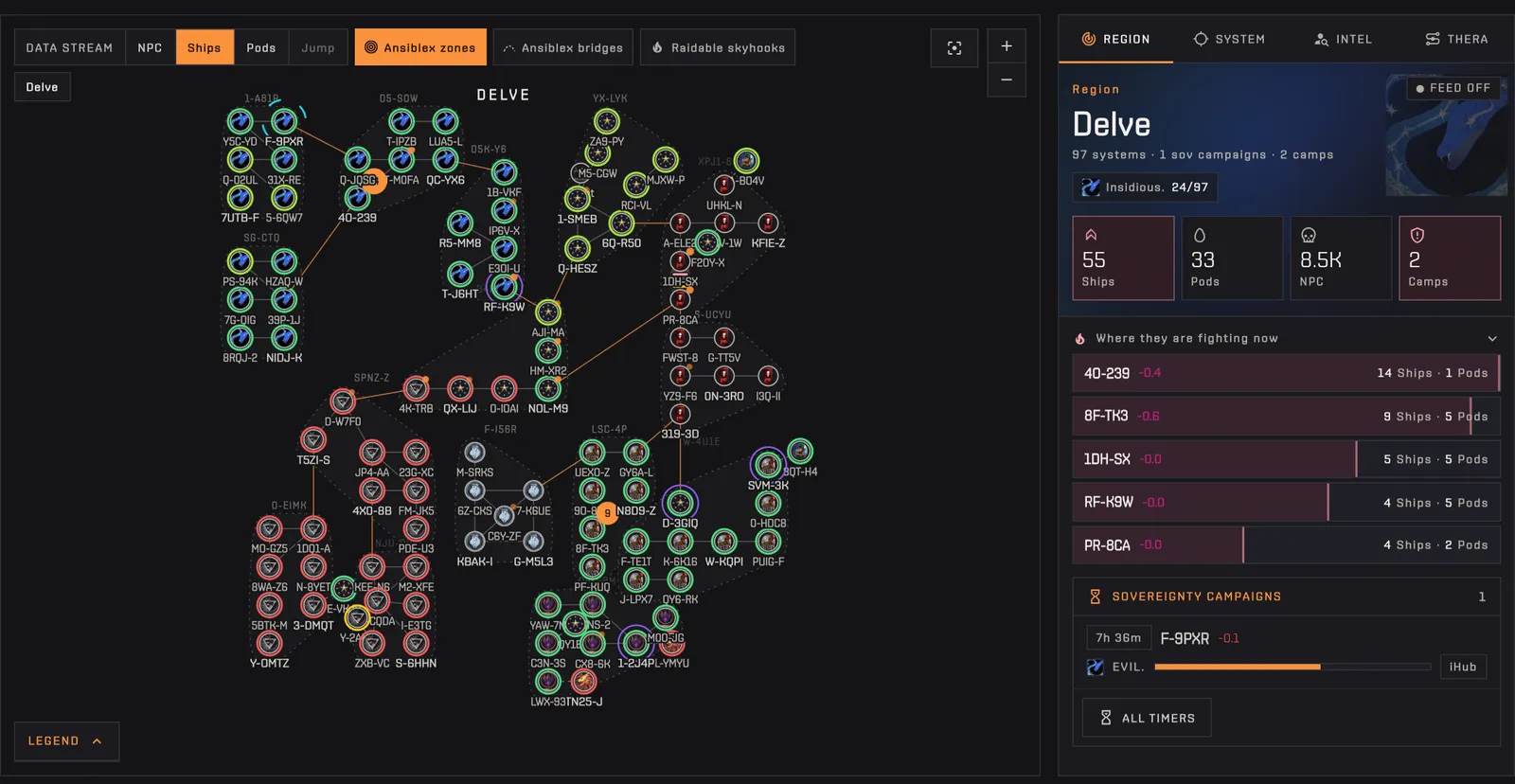
The Ansiblex zones chip on the Capsuleers Live Map rings each system with the zone of an Ansiblex jump there, from Zone 1 (green) to Zone 5 (red). The «Ansiblex zones» chip rings every system with the zone of an Ansiblex jump there, always measured from the capital of the alliance holding that system's sovereignty. The rings go from green (Zone 1) to red (Zone 5). Zoomed out you see only the ring, from mid zoom the Z tags appear. The violet ring marks an alliance capital. The legend shows how many systems of the region are in each zone.

How to use it

  1. Turn on the «Ansiblex zones» chip: it is on by default.
  2. Zoom in until the Z tags appear next to the rings.
  3. Open «Legend»: the zone bands, the multipliers and the count of systems per zone.
No account needed

Tip Systems without alliance sovereignty, or with an alliance that has not designated a capital, have no zone and are listed apart in the legend. For the cost of a jump by ship class, use the Ansiblex Zones tool.

Delve with the Ansiblex zones layer: rings from green to red and the legend with the systems per zone
Delve: zone rings from green to red, the count per zone in the legend.
10

How do I see everything about a system?

Click a system on the Capsuleers Live Map and its card opens in the System tab with security, sovereignty, activity, stargates and quick actions. One click on a system opens its card in the System tab: security, sovereignty, planets and belts, last-hour activity compared with the hour before, the stargates with their destinations, and quick actions — set destination, scan here, Thera from here, killboard.

How to use it

  1. Click a system on the map, or search it in the field at the top.
  2. Read the card in the System tab of the panel on the right.
  3. «NPC nearby» lists the systems of the region with NPC kills in the last hour, with the jumps from here.
No account needed
Clicking PR-8CA opens its system card in the right panel
AnimatedA click on PR-8CA: the panel switches to its card.
11

How do I follow kills in a region live?

Press Live feed on the Capsuleers Live Map and every kill in the region appears in the Region tab as it happens. With the feed on, every kill in the region arrives in the Region tab as it happens, straight from the eve-kill live stream: ship and victim, value, attackers and final blow, age. Rows over 1 billion ISK light up amber, over 10 billion red, and the strip above shows the rhythm of the last 30 minutes.

How to use it

  1. Press «Live feed» in the tool header.
  2. Watch the Region tab: new kills enter at the top.
  3. Click the system of a row to show it on the map, or the row to open the killmail without leaving.
No account needed
The Region panel of The Forge with the live feed on
The Forge with the feed on: kills, ISK destroyed and the rhythm per minute.
12

How do I see the kills in one system?

The Killboard button on a system card of the Capsuleers Live Map opens a drawer with that system's kills, from the last 24 hours up to 90 days. The «Killboard» button on the system card opens a drawer over the map with the kills of that system, from the last 24 hours to 90 days, sorted by time or by value. Pods are hidden by default, so a busy nullsec system is not two thirds capsules.

How to use it

  1. Open a system card and press «Killboard».
  2. Pick the period (24 h, 7, 30 or 90 days) and the order (most recent or most expensive).
  3. Click a kill to read the killmail in a side panel; Esc closes one level at a time.
No account needed
The kills drawer of PR-8CA opening over the map
AnimatedThe drawer stays over the map: the region keeps living behind it.
13

How do I spot a gate camp on the map?

The Capsuleers Live Map marks a gate camp as a short coloured bar across the stargate link, on the side being held. A camp is a short bar across the stargate link, on the side of the gate being held, with the minutes since the last kill. Hovering it tells you how many pilots are still on the gate, how many have been seen in total and the most at once; clicking it opens the gate's detail in the System tab.

How to use it

  1. Look for the coloured bars across the links: red is hot, amber is cooling down.
  2. Hover a bar to read who holds the gate and how many pilots.
  3. Right-click the system and «Avoid this system» when you plan a route.
No account needed

Tip The same camps feed the Killboard's camp radar: the definition of «camp» is the same everywhere on the site.

A gate camp bar on a stargate link, with its hover card
The bar sits on the held side; the card says who, how many and for how long.
14

How do I get the detail of a gate camp?

Click the camp bar on the Capsuleers Live Map and the System tab opens at Gates held with that gate in view. Clicking a camp on the map takes you straight to the point: the System tab opens, already scrolled to «Gates held», with the camped gate in view — who holds it, with which hulls, for how long.

How to use it

  1. Hover a camp bar to read the card.
  2. Click the camp: the panel switches to the System tab.
  3. Read «Gates held» for the gate you clicked, and open the killboard from there if you want the kills.
No account needed
Clicking a gate camp on the map: the panel opens the System tab at Gates held
AnimatedOne click on the camp: the System tab opens at «Gates held».
15

How do I follow sovereignty timers in a region?

The Capsuleers Live Map shows every sovereignty campaign of the region as a reticle around its system with a countdown, and lists them in the Region tab. Every sovereignty campaign of the region is a reticle around its system, with a countdown in the corner: grey when it is hours away, amber within the hour, red when it is running. The Region tab lists them, and picking one centres the map on its system.

How to use it

  1. Open a nullsec region with campaigns.
  2. Read the «Sovereignty campaigns» list in the Region tab.
  3. Pick a campaign to centre the map; star the defender to follow its timers everywhere on the site.
No account needed
A region with sovereignty campaigns marked by reticles and listed in the panel
Reticles on the map, the same campaigns listed in the panel.
16

How do I find raidable skyhooks and Mercenary Dens?

In nullsec the Region tab of the Capsuleers Live Map lists the skyhooks whose reagent silo window is open or opening soon, and an optional chip draws them on the map. In nullsec the Region tab lists the skyhooks whose reagent silo window is open or opening soon, with the minimum loot estimate. On the map the same skyhooks are a pill after the system name, filled while open and outlined while opening, but only if you turn on the «Raidable skyhooks» chip: it is off by default. Your own Mercenary Dens appear there too when you are signed in.

How to use it

  1. Open a nullsec region and expand «Raidable skyhooks» in the Region tab.
  2. Turn on the «Raidable skyhooks» chip to see the pills on the map, then pick a row to centre its system; the pill shows the minutes to closing.
  3. For travel time and loot detail, open the Skyhook Raids tool.
No account needed
The raidable skyhooks list in the Region panel
Open windows and the ones opening soon, with the loot estimate.
17

How do I put a D-Scan or Local on the map?

Paste a D-Scan or Local into the Intel tab of the Capsuleers Live Map and press Analyze: the report is pinned to its system. The Intel tab reads a D-Scan or a Local you paste from the client and pins the result to its system on the map: ships by class, capitals and interdiction for a D-Scan, pilots with their danger level for a Local. A D-Scan recognises its own system from the celestials it sees.

How to use it

  1. Open the Intel tab and paste the D-Scan window (or the Local list) — Ctrl+V works anywhere on the map.
  2. Press «Analyze»: the report opens and its system gets a mark with the count.
  3. «+ Local» or «+ D-Scan» adds the other half to the same report; «Share» creates a link.
No account needed

Tip Scans stay in this browser tab only. If you are in a fleet, you can send them to your fleet commander with «Share with the fleet».

Pasting a D-Scan in the Intel tab: the map moves to Tama and pins the report
AnimatedA D-Scan from Tama: the map moves there and pins the report.
18

How do I show my intel channels on the map?

The Channels mode of the Intel tab on the Capsuleers Live Map reads your EVE chat logs in the browser and turns intel channel reports into marks on the map. The fourth mode of the Intel tab, «Channels», reads the chat logs EVE writes on your PC and turns the reports of your alliance intel channels into marks on the map while you play. You pick your Chatlogs folder once, then choose which channels to watch and which region or regions each one covers.

How to use it

  1. In the EVE client turn on «Settings › Chat › Log chat to file».
  2. Open the Intel tab, switch to «Channels», press «Connect folder» and pick Documents/EVE/logs/Chatlogs.
  3. Tick the channels to follow and check the regions each one covers (we suggest them from the channel name), then press «Follow».
No account neededChrome, Edge, Brave or Opera

Tip The logs are read live in your browser: nothing is uploaded to our servers. The browser asks for the folder permission again on a new visit. The only external call is to ESI, made directly by your browser, to turn pilot names into characters.

Connecting the Chatlogs folder from the Channels mode, picking Delve.Intel and following it
AnimatedConnect the folder, pick Delve.Intel with its region, follow: reports start arriving.
19

How do I read the channel feed?

The Reports list in the Channels mode of the Capsuleers Live Map groups intel messages by system with their status: hostile, clear or request. Reports are grouped by system with their status — hostile, clear or request. The hostile count is the number stated in the message, or the sum of the ships recognised, or just «Hostiles». Ship types come with their icon and typos are forgiven («harbringer» is read as Harbinger); D-Scan and zKillboard links become chips, and every report shows how long ago it was written.

How to use it

  1. Read the «Reports» list: the most recent system comes first, with the age as «x ago».
  2. Open «Filters» (collapsed by default) to filter by distance, type or region, search a system, ship or pilot, and sort by most recent or nearest.
  3. Choose the «Expiry» (10, 15, 20 or 30 min): after it a report leaves the map but stays in the list.
  4. Turn on the sounds if you want them: «Sound for every report» is a short low tone, «Sound within alert range» is a quick triple beep.
No account neededChrome, Edge, Brave or Opera

Tip A line with no system we can recognise goes in «System not recognised»: press «Assign» and pick the system it meant.

The Reports list grouped by system: ships with icons, hostile counts, a D-Scan chip, a clear and a request
Grouped by system: counts, ships with icons, D-Scan chip, clear and request.
20

How do channel reports look on the map?

In the Channels mode of the Capsuleers Live Map, every reported system gets an amber ring and a pill with the hostile count and the minutes elapsed. Every reported system gets an amber ring and a pill with the number of hostiles and the minutes (green «clr» when it was called clear); both fade as the report ages and go away at expiry. Hover a system and its tooltip shows the intel: status, age and the latest lines with their pilots.

How to use it

  1. Look for the amber rings: the freshest are the brightest.
  2. Hover a system to read the report in its tooltip.
  3. Click the pill: the panel opens the Channels mode with the full feed.
No account neededChrome, Edge, Brave or Opera
1DQ1-A reported with 6 hostiles: amber ring and pill on the map, the report in the tooltip
An amber ring and a pill on the reported system; the tooltip carries the intel.
21

How do I check a pilot named in a channel?

Click a pilot named in a report of the Capsuleers Live Map Channels mode and a drawer opens with the pilot intel. When a message names a pilot, the name is recognised and shown with portrait and alliance logo. Click it and a side drawer opens with the pilot intel — kills, favourite ships, the danger at a glance — without leaving the map.

How to use it

  1. Find the pilot chip in a report.
  2. Click it: the drawer opens on the right, with the pilot page and killboard one click away.
  3. Esc or the close button puts it away.
No account neededChrome, Edge, Brave or Opera

Tip The pilot intel is requested only when you click, and only for that character.

Clicking a pilot named in a report opens the pilot intel drawer
AnimatedA click on the pilot: the intel opens beside the map.
22

How do I get an alert when hostiles are close?

Signed in with EVE, you set Alert within (1, 2, 3 or 5 jumps) in the Channels mode of the Capsuleers Live Map and get a toast when a hostile report lands that close. If you are signed in with EVE, set «Alert within» (1, 2, 3 or 5 jumps) and the map warns you when a hostile report lands that close: a toast on the map with the system and the jumps. The distance is counted from the nearest of your characters, and positions come only from ESI, for every character you have logged in.

How to use it

  1. Sign in with EVE and enable the «Location» service on your characters.
  2. Set «Alert within» in the Channels mode, and «Show within» to hide what is too far.
  3. Turn on «Sound within alert range» for the beeps with the toast.
EVE loginLocation scopeChrome, Edge, Brave or Opera

Tip Without a logged-in character nothing is hidden and no alert fires: the feed shows every report of the followed channels.

23

How do I find the nearest Thera or Turnur connection?

The Thera tab of the Capsuleers Live Map lists the nearest Thera and Turnur wormholes from your pilot or from any system, using EVE-Scout data. The Thera tab finds the nearest Thera and Turnur wormholes from the pilot you follow or from the system you pick, with the jumps to the entrance, both signatures (IN to enter, OUT to exit), the largest ship that fits and the hours left.

How to use it

  1. Open the Thera tab.
  2. Choose the starting point: your followed pilot, the selected system or another system.
  3. Copy a signature with one tap, or press «Route» to draw the path on the map.
No account needed

Tip Community data from EVE-Scout: a wormhole can close before its hours run out.

The Thera tab listing the nearest connections from Jita
AnimatedFrom Jita: the nearest entrances, signatures and hours left.
24

What can I do with a right click on a system?

Right-clicking a system on the Capsuleers Live Map opens a menu to set game waypoints, draw a map route and open the system tools. Right-clicking a system opens a menu in three groups. «In game» sets the destination or adds a waypoint in the game client; it needs your EVE login and the autopilot permission. «On the map only» draws a route here or from here — through your alliance's Ansiblex when you are signed in and the bridges are on — or clears it. «System» opens its card, scans there, finds the nearest Thera or Turnur, opens the killboard or the route calculator, and copies the name.

How to use it

  1. Right-click any system on the map (long press on a touch screen).
  2. Pick «Set destination in game» or «Add waypoint in game» to send it to the client.
  3. Or pick «Route to here» or «Route from here»: with both ends set, the route is drawn on the map; «Clear the map route» removes it.
No account neededEVE login for the in-game items

Tip The «In game» items stay greyed out until you log in with a character and grant the waypoint permission. On a remote system of a connected region the menu also offers «Open the Tenerifis map».

The context menu of PR-8CA opened with a right click
AnimatedIn game, on the map only, system: every action one right click away.
25

How do I follow my pilot on the map?

Signed in with EVE and with the Location service enabled, you pick a character in Trackable pilots on the Capsuleers Live Map and the map follows it. Signed in with EVE, the characters with the location service appear in «Trackable pilots». Pick one and the map reads their position every 15 seconds, marks their system with an orange diamond and switches region when they jump — the kill feed follows them too.

How to use it

  1. Sign in with EVE and enable the «Location» service on the character, in your profile.
  2. Open «Trackable pilots» in the map header and pick the character.
  3. The map moves to their region and keeps following; pick them again to stop.
EVE loginLocation scope

Tip The position keeps updating with the tab in the background, so the map is already in the right place when you come back.

Picking TremalJack from Trackable pilots: the map jumps to Delve and marks 1DQ1-A
AnimatedPick a pilot: the map moves to their region and marks their system.
26

How do I see my fleet on the map?

When you track a fleet as its boss, the Capsuleers Live Map shows the members as cyan portraits under their systems. When you are tracking a fleet as its boss, the members appear as cyan portraits under the system they are in, up to three per system and then a «+N». Orange is the pilot you follow, cyan is the fleet: the two layers stay distinct even when the same pilot is both.

How to use it

  1. Start the fleet tracking from Fleet Ops with the character who is fleet boss.
  2. Open the Live Map: the members appear on their systems, refreshed every 30 seconds.
  3. Open a system card to read the «Fleet here» list with every member and their ship.
EVE loginFleet boss
Fleet members shown as cyan portraits under 1DQ1-A
1DQ1-A: your characters above the node, the fleet in cyan below it — three portraits and a +2.
27

Does the Live Map work on a phone?

Yes: the Capsuleers Live Map has a full-screen mode on desktop and a panel layout for portrait and landscape phones. On a phone the map takes the whole screen: in portrait the panel slides up from the bottom at three heights, in landscape it sits on the side and folds into a tab. On desktop the full-screen button hides the site header and gives all the height to the map. On a phone the controls at the top are compact: the buttons on the right sit in a column, the Ansiblex zones, bridges and skyhooks chips are just icons, and the legend always starts collapsed so it does not cover the map.

How to use it

  1. On desktop press the full-screen button at the end of the tool header; Esc exits.
  2. On a phone, drag the panel handle up or down, or tap it to change height.
  3. Turn the phone sideways for the landscape layout with the side panel.
  4. Open «Legend» only when you need it: on a phone it starts collapsed every time.
No account needed
The Live Map on a phone in portrait with the panel at the bottom
Portrait phone: the map on top, the panel from the bottom.

Frequently asked questions

What is the Capsuleers Live Map?

It is a free regional map of EVE Online on Capsuleers.App that overlays real-time kills, gate camps, sovereignty timers, Ansiblex bridges and Thera connections on the 2D layout of the client map. Signing in with EVE adds your pilots and fleet.

Do I need an account to use the Live Map?

No. The map, kills, camps, sovereignty timers, skyhooks and Thera connections are public. Signing in with EVE is only needed to follow your characters and see your fleet.

How fresh is the data?

Kills arrive from the eve-kill live feed in real time. Character positions are read every 15 seconds and fleet members every 30. Camps and sovereignty refresh every few minutes; the last-hour numbers on the nodes come from ESI once an hour.

Can I share a map centred on a system?

Yes. The address carries the region and the selected system (for example /tools/map/Delve?system=1DQ1-A): whoever opens the link finds the map already centred.

Why is my pilot not followed?

The character needs the «Location» service enabled in your profile. Without it the pilot is not listed among the trackable pilots, and the profile link opens the right switch.

Why can't I see my fleet?

ESI gives the member list only to the fleet boss. Start the tracking from Fleet Ops with the character who commands the fleet, then open the map with the same account.

What do the coloured bars on the stargate links mean?

They are gate camps: a gate where kills keep happening. The bar sits on the side being held and carries the minutes since the last kill; red means active right now.

Are my chat logs sent to your servers?

No. The Channels mode reads the files of your Chatlogs folder live in your browser, and the logs never leave it. The only external call is made by the browser straight to ESI, to turn the pilot names it finds into characters.

Which browsers can read the intel channels?

Chrome, Edge, Brave and Opera, because they can open a folder on your PC. Firefox and Safari cannot: there the rest of the Intel tab still works, and the Capsuleers Intel desktop app reads the logs with any browser.

Why does the channel feed show no alerts?

Alerts and jump distances need you signed in with EVE and the «Location» service enabled: positions come only from ESI, for all your logged-in characters, and the distance is counted from the nearest one. Without them the feed still shows every report of the followed channels.

Who can use the Ansiblex bridges drawn on the map?

Only the alliance holding the sovereignty of the system: the colour of the dashed line and the «Usable by … (sov holder)» tooltip say which. The bridges come from a community source, read by our server, and can lag behind the game.

Why are there other regions around the one I opened?

With the «Ansiblex bridges» chip on, every region reached by a bridge is drawn around the current one, dimmed and in its real direction. Click a system to open its card, or its region name to open that map. Turn the chip off to see only the current region.

Does it work on a phone?

Yes, in portrait with a bottom panel and in landscape with a side panel. Every feature of the desktop version is there, except the Channels mode, which needs a browser that can open a folder on your PC.

Is it the same as the in-game map?

It uses the same 2D layout and the same security colours as the client map, and adds what the client does not show you at a glance: the last hour of kills, camps, sov timers, Thera and your fleet.