Capsuleers.app logo CAPSULEERS.APP

Guide · Capital navigation

Jump Range — complete guide

Pick a system and a hull, set your Jump Drive Calibration, and Jump Range shows every system you can light a cyno in from there — on a 3D or 2D map and in a list you can filter by region, security, distance, docking, sovereignty and kills, with the isotopes each jump costs.

Last updated:

Account
Not needed
Hulls
Capitals, supers, titans, JF, Rorqual, Black Ops
Skills
JDC, Jump Fuel Conservation, Jump Freighters
Views
2D/3D map, filterable list
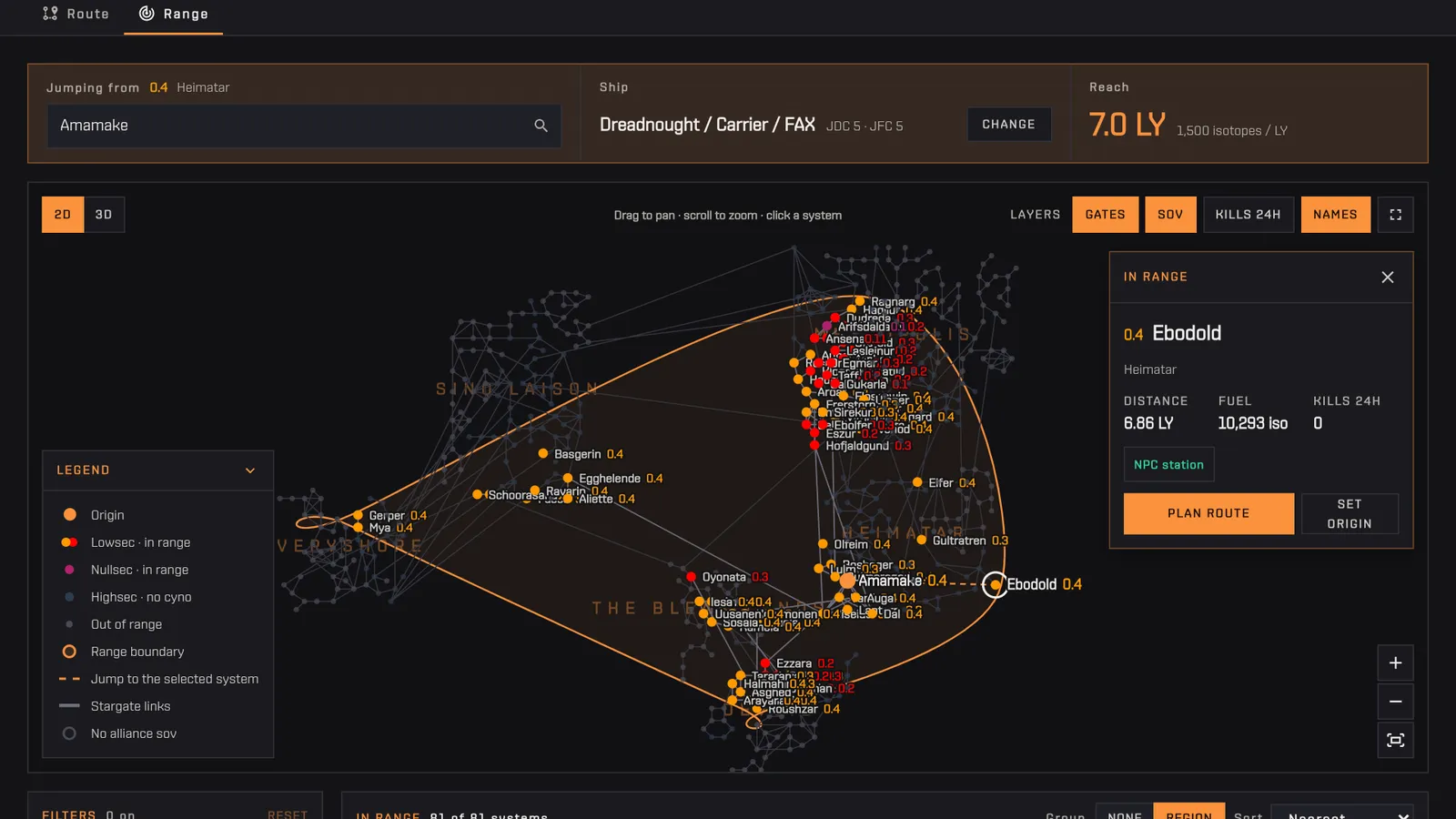
The jump range of a dreadnought from Amamake with JDC 5: the 2D map with Ebodold selected in the focus card, the filters and the list of systems in range
A dreadnought in Amamake at JDC 5: 7 LY of reach, the jump to Ebodold selected.

What is the Jump Range calculator for EVE Online capitals?

The Jump Range calculator on Capsuleers.App shows every EVE Online system a capital ship, jump freighter, Rorqual or Black Ops battleship can reach in one jump from the system you choose, given its hull and your Jump Drive Calibration skill. It needs no account and recalculates by itself whenever you change the origin, the ship or the skills.

A jump drive does not follow stargates: it reaches any system within a radius in light years, as long as a cyno is lit there. The radius depends on the hull and on Jump Drive Calibration, which adds 20% per level, so at level V a dreadnought goes from 3.5 to 7 light years. The calculator measures that sphere from your origin using real system coordinates and lists every reachable system with its distance and the isotopes the jump costs.

Highsec systems are never valid landings, because cynos cannot be lit there; wormhole space, Pochven and Zarzakh are outside jump-drive travel altogether. For a single hop this page is enough. For a full trip with several jumps, gates in between and jump fatigue, switch to the Route tab, the Jump Planner, which keeps your ship and skills.

Capital pilots

Know at a glance which systems a dread, carrier, FAX, super or titan reaches from staging.

Jump freighter pilots

Find landings with an NPC station and check the isotope cost of each jump before moving cargo.

Black Ops and cyno alts

Find quiet, unclaimed systems where the bridge or the drop lands in range.

Getting started

  1. OriginType the system you jump from: the range appears on its own.
  2. Ship and skillsPress Change to pick the hull and skill levels.
  3. FilterNarrow the list by distance, security, region and more.
  4. Pick a targetClick a system for distance and fuel, or plan a route to it.

Features

Each card: what it does, how to use it, what it needs.
01

How do I see which systems my capital can jump to?

To see where a capital can jump, enter the origin system in the Jump Range bar on Capsuleers.App: the systems in range appear on their own, with no button to press. The bar at the top holds the origin system, the ship with a short summary of your skills, and the Reach in light years with the isotopes burnt per light year. The systems are computed again whenever you change the origin, the ship or the skills. Reach is the radius on which the whole map and the list are built, so it is the first number to read. Security and region of the origin appear next to the Jumping from label, which helps you confirm you picked the right system before trusting the list.

How to use it

  1. Type the origin in Jumping from and pick it from the suggestions: security and region appear next to the label.
  2. Read Reach: it is the radius the whole map and list are built on.
  3. The map and the list of systems in range appear below.
No account needed
Typing Amamake as the origin: the range of a dreadnought at JDC 5 appears on its own, with the map and the list
AnimatedAmamake, dreadnought, JDC 5: the systems in range appear as soon as the origin is set.
02

How do I set my ship and Jump Drive Calibration?

To set the hull and skills, press Change next to the ship name in Jump Range: a card appears for every hull class with its base range and isotopes per light year, and a row of level pills for each skill, with the effect written next to the name. Choose dreadnought, carrier and FAX, supercarrier, titan, one of the four jump freighters, Rorqual or Black Ops. Jump Drive Calibration adds 20% of range per level and Jump Fuel Conservation removes 10% of fuel per level, from 0 to 5; for a jump freighter also set Jump Freighters. Reach updates at every click, so you can see what training one more level would give you. Ship and skills are kept when you switch between the Range and Route tabs.

How to use it

  1. Press Change in the Ship cell.
  2. Pick the hull card: dreadnought, carrier and FAX, supercarrier, titan, one of the four jump freighters, Rorqual or Black Ops.
  3. Set Jump Drive Calibration (+20% range per level) and Jump Fuel Conservation (−10% fuel per level) with the pills 0 to 5; for a jump freighter set Jump Freighters too.
  4. Press Done to close the picker.
No account needed

Tip The ship and the skills are kept when you switch between the Range and Route tabs.

Opening the ship picker and choosing the Rhea: the reach grows to 10 LY and the map and list fill with more systems
AnimatedHull cards and skill pills: the reach follows every click.
03

How do I read the 3D and 2D range map?

The Jump Range map draws the reachable systems with the range boundary around the origin. In 3D you see the real shape of the sphere and can orbit it; in 2D the systems are laid out like the in-game map. Coloured nodes are in range, grey ones are out of range or highsec and stay as context. Switch between 2D and 3D at the top left; in 3D the Top, Iso and Side presets frame the sphere from above, at an angle or from the side. Drag to orbit (3D) or pan (2D), use the wheel or + and − to zoom, and the frame button to fit the view. The Legend panel explains every mark and the top-right button opens the map full screen. It also works from the keyboard: arrows, + and −, 0 to fit, Escape to close the card.

How to use it

  1. Switch between 2D and 3D with the buttons at the top left; in 3D the Top, Iso and Side presets frame the sphere from above, at an angle or from the side.
  2. In 3D drag to orbit and right-drag or Shift-drag to pan; in 2D drag to pan. The wheel or + and − zoom, and the frame button fits the view.
  3. The Legend panel at the bottom left explains every mark; the button at the top right opens the map full screen.
No account needed

Tip The map works from the keyboard too: arrows move or orbit, + and − zoom, 0 fits the view, Escape closes the card.

The range map in 3D with the Iso preset, then switched to the 2D view
AnimatedThe same range as a 3D sphere and in the 2D view.
04

How do I show gates, sovereignty and kills on the range map?

Layers, at the top right of the Jump Range map, turns four overlays on and off: Gates draws the stargate links, Sov tints each system with the alliance that holds it, Kills 24h puts a halo on systems with kills in the last day, sized by how many, and Names writes the system names. On a narrow screen open the Layers menu first. The legend follows and lists only the marks of the active layers. Turn on Kills 24h before choosing where to light a cyno: a big halo means someone was fighting there today, and a quiet system is usually a safer landing.

How to use it

  1. Press a layer under Layers to turn it on or off (on a narrow screen, open the Layers menu first).
  2. The legend follows: it lists only the marks of the active layers.
No account needed

Tip Turn on Kills 24h before choosing where to light a cyno: a big halo means someone was fighting there today.

Turning on the Kills 24h layer: halos appear on the systems with recent kills
AnimatedKills 24h on: the halos show where the fighting was.
05

How do I get the distance and fuel cost of a jump?

Click a system on the Jump Range map, or its name in the list, and a focus card opens over the map with the distance in light years, the isotopes for the jump with your fuel skills applied, the kills of the last 24 hours, the NPC station and the sovereignty. On the map the jump line is drawn from the origin. From the card, Plan route opens the Jump Planner towards that system, and Set origin measures the range from there, which is how you chain a second hop. On a phone the selected system stays in a bar at the bottom, with fuel one way and round trip and the same two buttons.

How to use it

  1. Click a coloured system on the map or a name in the list.
  2. Read distance, fuel and kills in the card.
  3. Press Plan route to open the Jump Planner towards that system, or Set origin to measure the range from there.
No account needed

Tip On a phone the selected system stays in a bar at the bottom, with fuel one way and round trip and the same two buttons.

Clicking Ebodold in the list: the focus card on the map shows distance, fuel and kills, with Plan route and Set origin
AnimatedEbodold selected: distance, fuel and what to do next.
06

How do I filter the systems in range by security, region or kills?

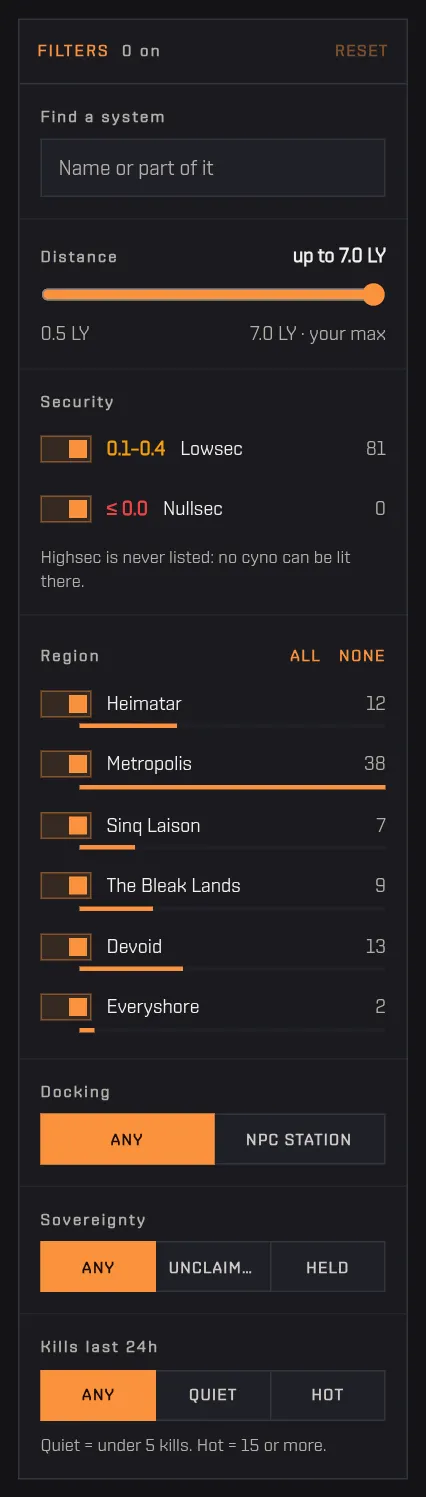
The Filters panel next to the Jump Range list narrows the systems in range. Distance keeps only systems up to a number of light years you set with the slider. Security lets you untick Lowsec or Nullsec, with the number of systems each holds. Region lets you untick regions, or use All and None. Docking: NPC station keeps only systems with a station. Sovereignty: Unclaimed or Held. Kills last 24h: Quiet (under 5) or Hot (15 or more). Every active filter shows as a chip above the list that you remove with one click; the panel header counts them and Reset clears them all. On a phone the filters open from the Filters button as a sheet from the bottom, with a button showing how many systems match.

How to use it

  1. Distance: drag the slider to keep only systems up to a given number of light years.
  2. Security: untick Lowsec or Nullsec; the number next to each says how many systems it holds.
  3. Region: untick the regions you do not want, or use All and None.
  4. Docking: NPC station keeps only systems with a station; Sovereignty: Unclaimed or Held; Kills last 24h: Quiet (under 5) or Hot (15 or more).
No account needed

Tip On a phone the filters open from the Filters button as a sheet from the bottom, with a button that shows how many systems match.

Unticking Lowsec and choosing NPC station under Docking: the list shrinks and two filter chips appear above it
Two filters on: nullsec only, with an NPC station.
07

How do I read and sort the list of systems in range?

The In range list of Jump Range shows every system that passes the filters, with security, name, region, distance with a bar against your reach, fuel, kills in the last 24 hours and sovereignty or docking. The header says how many systems are shown out of the total. Group by Region or None: grouped, each region shows its number of systems and the nearest distance, with Only this region to filter on it. Sort by Nearest, Farthest, Most kills or Name. Route → at the end of a row opens the Jump Planner from your origin to that system. An NPC station in the target means you can dock right after landing, useful for a jump freighter.

How to use it

  1. Group by Region or None: grouped, each region shows its number of systems and the nearest distance, with Only this region to filter on it.
  2. Sort by Nearest, Farthest, Most kills or Name.
  3. Route → at the end of a row opens the Jump Planner from your origin to that system.
No account needed

Tip An NPC station in the target system means you can dock right after landing — useful for a jump freighter.

The list of systems in range grouped by region, with distance bars, fuel, kills and sovereignty
Every system in range, region by region, with fuel, kills and sovereignty.
09

How do I share a jump range with my fleet?

Share link, at the top right next to the Route and Range tabs of Jump Range, copies an address with origin, ship, skills and the selected target. Whoever opens it sees the same range already computed and can change it, and on Discord the link shows a preview card of the range. Set the origin, select a target if you want, press Share link and paste it in your fleet channel: everyone starts from the same hull, skills and origin.

How to use it

  1. Set the origin and, if you want, select a target.
  2. Press Share link at the top right.
  3. Paste the link in your fleet channel.
No account needed
A shared range opened from a link: the map and the list already computed, with the Share link button next to the Route and Range tabs
A shared link opens directly on the result.

Frequently asked questions

How is jump range calculated in EVE Online?

Jump range is the hull base range in light years plus 20% per level of Jump Drive Calibration. At JDC V a dreadnought or carrier reaches 7 LY, a titan 6 LY, a jump freighter or Rorqual 10 LY and a Black Ops 8 LY. The Jump Range calculator on Capsuleers.App applies this from the real system coordinates.

Is there a button to start the calculation?

No. The Jump Range calculator computes the systems in range as soon as the origin is set, and again whenever you change the origin, the ship or the skills. Filters work on the list instantly.

Can I jump into highsec?

No. Cynosural fields cannot be lit in highsec, so those systems are never valid landings and are never listed. You can, however, jump out of highsec with the hulls allowed there.

How much fuel does a jump cost?

The fuel is the hull base burn per light year times the distance, lowered by 10% per level of Jump Fuel Conservation and, for jump freighters, by the Jump Freighters skill. The list and the focus card give the exact amount of isotopes for each system.

Does it account for jump fatigue?

Not for a single jump. Fatigue and activation cooldown are computed by the Jump Planner, jump by jump, over a whole route: Route → on a row or Plan route in the card opens it towards that system.

Why are wormhole systems and Pochven missing?

Jump drives cannot reach or leave wormhole space, Pochven or Zarzakh, so those systems are never part of the result of the Jump Range calculator.

Which ship classes are supported?

Dreadnoughts, carriers and FAX, supercarriers, titans, the four jump freighters, the Rorqual and Black Ops battleships.

Do I need to sign in?

No. The Jump Range calculator is public and works without an account.