
Capsuleers.app logo CAPSULEERS.APP

Guide · Industry · Mining

What to mine — complete guide

Copy the Survey Scanner of a belt and see which rock is worth mining first, whether to sell it compressed or as minerals, and what an hour of mining earns with your ship. This guide shows how to copy the scan, what ISK/m³ means and where to find your mining yield.

Last updated:

Account
Not needed
Input
Survey Scanner copied from the client, or ores added by hand
Prices
Jita 4-4 via ESI, refreshed about every hour
Privacy
Pasted text stays in your browser
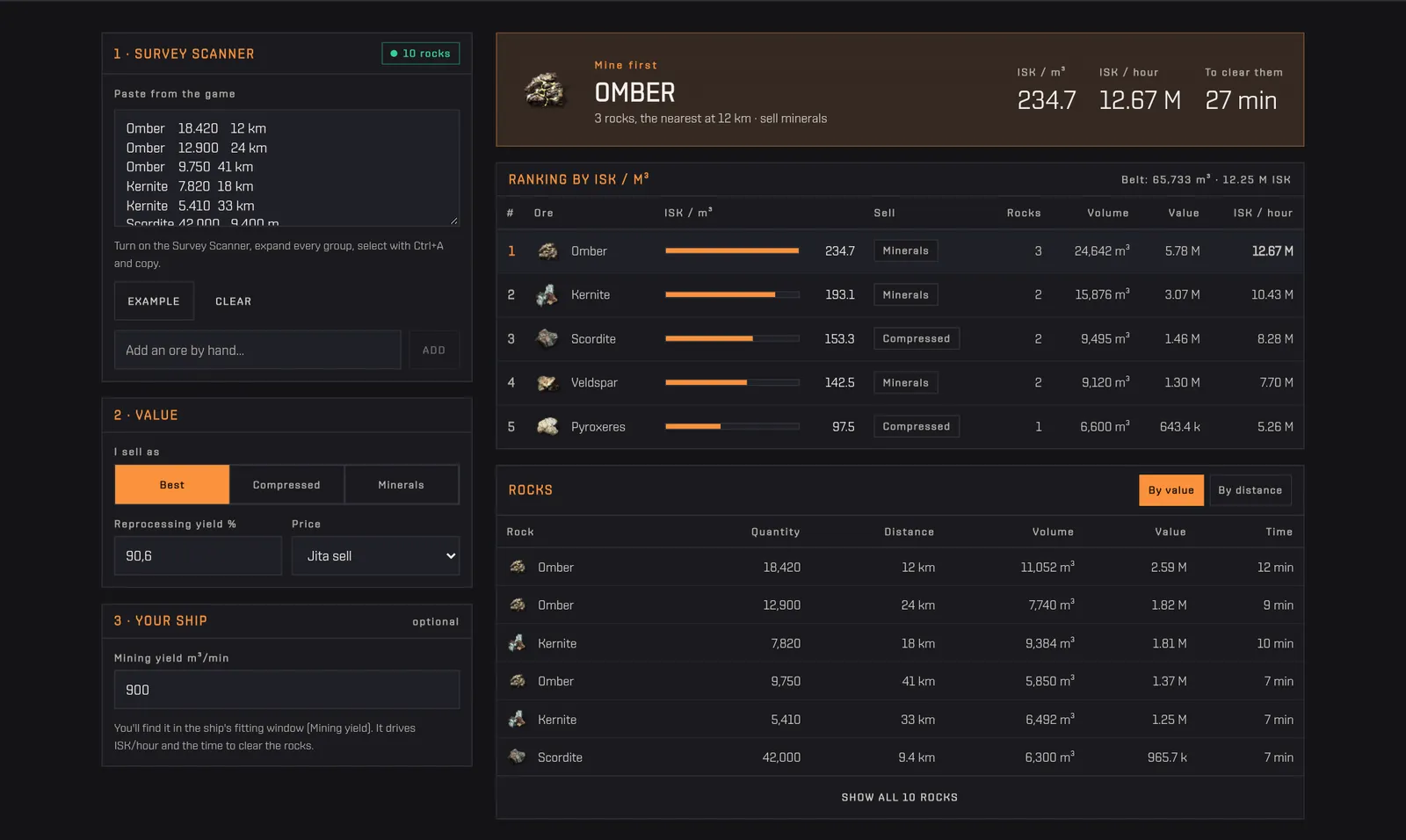
What to mine with an example scan: the ore to mine first with ISK per m³, ISK per hour and time to clear, then the ranking by ISK per m³ and the rocks list
A belt, ranked: what to mine first and what an hour is worth.

What is What to mine?

What to mine is the Capsuleers.App tool for choosing the rock when you arrive in a belt. It reads the Survey Scanner you copied from the client and ranks the ores by ISK per m³: the value of what the laser extracts, for each cubic metre. For every ore it works out whether it sells better compressed or reprocessed into minerals.

Add your ship's mining yield in m³ per minute and you also get ISK per hour and the time to clear the rocks. You can add an ore by hand that is not in the scan to compare it with what is there.

Miners in a new belt

Know in seconds which rock to start from and which to ignore.

Mining fleet bosses

See the belt's total volume and value and how long it takes to clear with your yield.

Miners choosing between ores

Add an ore by hand to compare it with the belt and decide where to go.

Getting started

  1. Scan the beltTurn on the Survey Scanner, expand every group, Ctrl+A and Ctrl+C.
  2. Paste itPaste into the box: the counter tells you how many rocks were read.
  3. Choose how you sellBest, Compressed or Minerals, with your reprocessing yield and the Jita side.
  4. Add your yieldType your ship's mining yield in m³/min for ISK per hour and time to clear.

Features

Each card: what it does, how to use it, what it needs.
01

How do I use and copy the Survey Scanner?

The Survey Scanner is the module that lists the asteroids in range. Turn it on in the client, and its window shows the rocks grouped by ore, with quantity and distance. The tool reads each line as "ore, quantity, distance".

How to use it

  1. Turn on the Survey Scanner in the belt.
  2. In its window expand every group, so each rock is on its own line.
  3. Click inside the list, press Ctrl+A and then Ctrl+C.
  4. Paste into the "Survey scanner" box. Group lines without a quantity and header lines are ignored; distances in m, km and AU are understood.
  5. Check the "rocks" counter: lines the tool does not recognise are listed under the box.
No account needed

Tip Only English ore names are matched. If your client runs in another language, switch it to English before copying, or the lines will come back as not recognised. Windows or Linux line endings do not matter, and numbers are read in any format.

The Survey scanner box with an example scan, the rocks counter and the box to add an ore by hand
Paste the scan: one rock per line.
02

Best, Compressed or Minerals: how do I choose?

"I sell as" sets how each ore is valued. "Compressed" uses the Jita price of the compressed ore. "Minerals" uses the value of the minerals you get reprocessing, at the yield you set (default 90.6%). "Best" takes, ore by ore, whichever is worth more, and the ranking tells you which one it picked in the "Sell" column.

How to use it

  1. Pick "Best" if you can do either: you get the highest value for each ore.
  2. Pick "Compressed" if you will sell the ore as it is, or "Minerals" if you will always reprocess.
  3. Set the reprocessing yield (it only matters for minerals) and Jita sell or Jita buy as the price side.
  4. An ore with no compressed price in Jita is always valued as minerals.
No account needed
The Value section with the Best, Compressed and Minerals modes, the yield and the market side
How you plan to sell decides the ranking.
03

Where do I find my mining yield, and what does it give me?

The mining yield is how many cubic metres per minute your ship extracts. You find it in the ship's fitting window, under Mining yield, in m³ per minute. Type it in "Your ship": with it the tool adds ISK per hour and the time to clear the rocks. It is optional: without it you still get the ranking.

How to use it

  1. Open the fitting window of the ship you will mine with.
  2. Read the Mining yield value (m³/min) and type it in "Mining yield m³/min".
  3. ISK/hour is ISK per m³ × yield × 60. The time to clear a rock or an ore is its volume divided by the yield.
No account needed

Tip The field starts at 900 m³/min as a placeholder: replace it with your own. The figures are theoretical: they do not include travel between rocks, hauling, a full hold, depleted rocks or other miners in the same belt.

The Your ship section with the Mining yield field in m³ per minute and the hint about where to find it
One number from the fitting window, and ISK per hour appears.
04

What do "Mine first" and ISK/m³ mean?

The top box names the ore to mine first: the one with the highest ISK per m³. ISK/m³ is the value of one unit of ore (compressed or as minerals, as you chose) divided by the volume of the raw unit, which is what the laser extracts. It is the fair way to compare ores, because a cubic metre of one is not a cubic metre of the other.

How to use it

  1. Read the ore, its ISK/m³, ISK per hour and the time to clear all of its rocks.
  2. The line below says how many rocks there are, the distance of the nearest and whether to sell compressed or as minerals.
  3. The belt line in the ranking gives the total volume in m³ and the total value in ISK.
No account needed
The Mine first box with the top ore, its ISK per m3, ISK per hour and the time to clear it
The ore to start from, and what it pays.
05

How do I read the ranking by ISK/m³?

The ranking lists every ore in the belt from the highest ISK/m³ to the lowest, with how to sell it, the number of rocks, the volume, the value and ISK per hour. The first line is highlighted.

How to use it

  1. Compare the ISK/m³ bars: they show how far apart the ores are.
  2. Check "Sell" to see if the ore pays more compressed or as minerals.
  3. Look at rocks and volume: a rich ore with one small rock may not be worth moving for.
No account needed
The ranking by ISK per m3 with the sell mode, rocks, volume, value and ISK per hour of each ore
Every ore in the belt, from best to worst.
06

How do I see rock by rock, and add an ore by hand?

The Rocks table lists each rock with its ore, quantity, distance, volume, value and the time to clear it. Sort it by value or by distance, and show only the first ones or all of them. To compare an ore that is not in the scan, type its name in "Add an ore by hand".

How to use it

  1. Use "By value" to see the richest rocks, or "By distance" to see the nearest.
  2. Press "Show all" to see every rock; the table starts with the first six.
  3. To add an ore by hand, type its name (English), pick it from the suggestions and press "Add": it joins the ranking with no rocks.
  4. Press the ore chip to remove it again.
No account needed
The rocks table with ore, quantity, distance, volume, value and time, and the By value and By distance sorting
Each rock with its value and the minutes it takes.

Frequently asked questions

What does ISK per m³ mean?

It is the ISK you get for each cubic metre of ore extracted: the value of a unit (compressed or as minerals) divided by the volume of the raw unit. It lets you compare ores of different volume fairly.

Where do I find the mining yield of my ship?

In the ship's fitting window, under Mining yield. It is expressed in m³ per minute. Type it in "Your ship" to get ISK per hour and the time to clear the rocks.

Why does the reprocessing yield matter?

Because the minerals you get are the materials of the ore times the yield of your reprocessing setup. A higher yield makes "Minerals" worth more and can change the ranking. If you only sell compressed, it does not matter.

Why are some lines "not recognised"?

The ore name is not one the tool knows, or the line has no quantity. Only English ore names are matched: a client in another language must be switched to English before copying. The unrecognised lines are listed under the box.

Does it matter if the text has Windows or Linux line endings?

No, both are read the same.

Which distances does it understand?

Metres, kilometres and AU, with the decimal comma or point of any language. A line without a distance is read all the same: it only has no distance in the table.

Are ISK per hour realistic?

They are the ceiling: ISK per m³ times your yield, as if you mined without ever stopping. They do not include travel, emptying the hold, depleted rocks or competition for the same rock.

Where do the prices come from?

From Jita 4-4, read from ESI: the volume-weighted average of the best 5% of the orders on the side you choose, refreshed about every hour. The page shows how old they are. Nothing you paste is saved on a server.